
Before buying a laptop for Revit, learn what the CPU, RAM, graphics card, and storage really mean for modelling, coordination, and rendering.
A laptop advertisement promises a fast processor, an impressive graphics card and plenty of storage. It looks suitable for almost anything. But will it handle a Revit project with several linked models, multiple views and a few hundred families without slowing to a crawl?
That is the question worth asking before paying for a new machine. For students, the challenge is choosing a laptop that can support coursework today without becoming frustrating as the projects get larger.
The answer depends on what you plan to do. Revit laptop requirements for learning basic modelling are different from the specifications that make multidisciplinary BIM coordination or real-time rendering comfortable.
First, Which Version of Revit Will You Use?
In late 2026, Revit 2027 is Autodesk's current release, although training centres and project teams may still work with Revit 2026 or earlier versions. That matters when checking a seller's claim that a laptop is “Revit compatible”.
Autodesk's Revit 2027 system requirements specify 64-bit Windows 11, while Revit 2026's published requirements also list certain Windows 10 configurations. If you are buying a computer now, a supported Windows 11 configuration is the more sensible starting point.
Also check the version of Revit used in your course and any additional software required. A laptop suited to Revit alone may be less suitable for an Enscape visualisation assignment or a workflow that keeps several applications open together.
What Do the Official Requirements Actually Say?
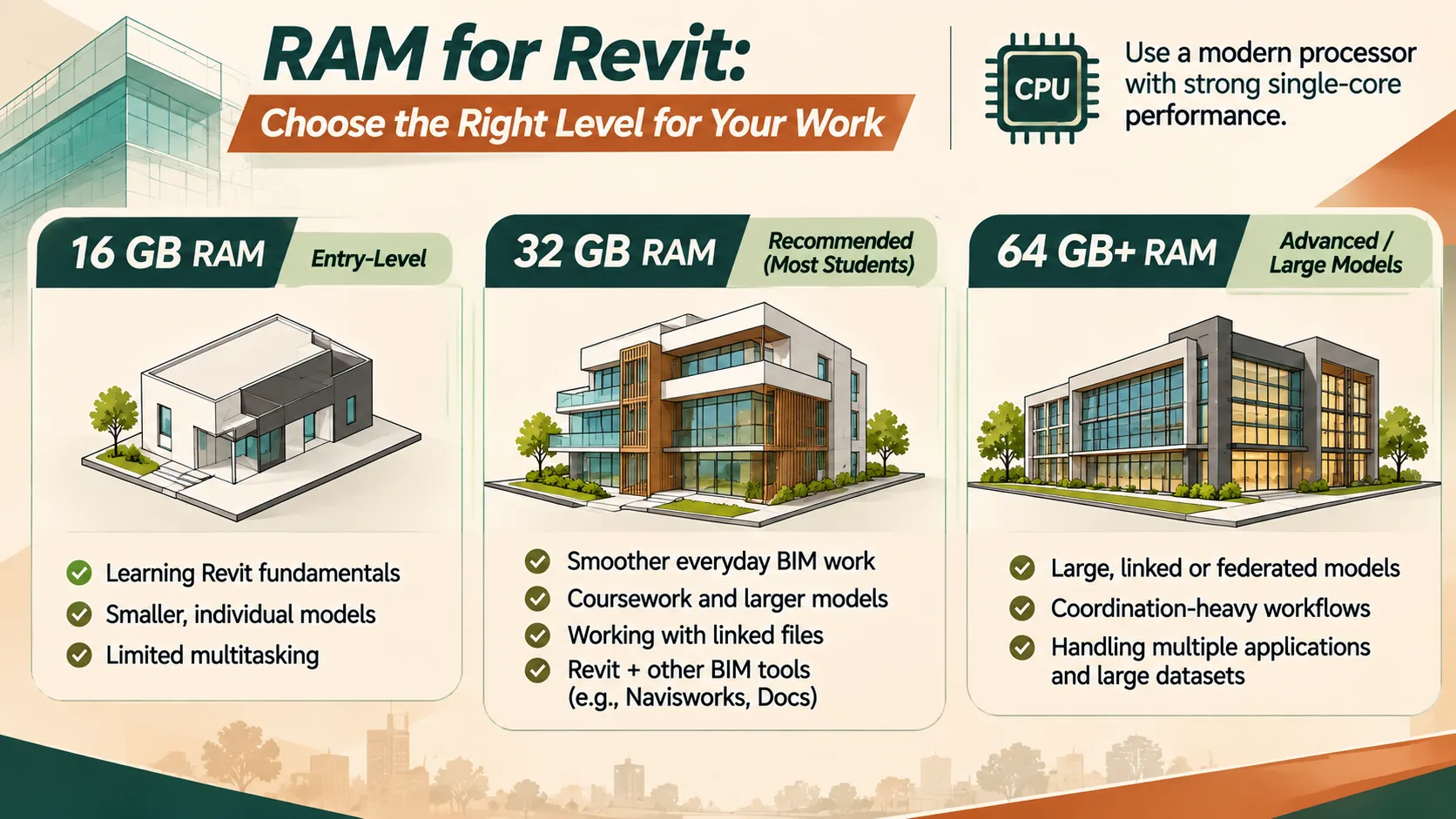
Autodesk separates Revit 2027 specifications into entry-level, balanced and large-model configurations. The RAM figures give a useful reference, although they are not promises of identical performance on every project.
| Intended workload | Autodesk Revit 2027 RAM guidance | Practical student interpretation |
|---|---|---|
| Entry-level modelling | 16 GB | A starting point for simpler individual models, with limited room for multitasking |
| Balanced everyday work | 32 GB or more | The preferable target for most students learning Revit alongside other BIM tools |
| Larger, complex models | 64 GB or more | Worth considering for substantial linked models and demanding professional workflows |
Autodesk lists a 2 GHz or faster base-clock Intel or AMD CPU and recommends strong single-core speed. Its graphics guidance includes at least 4 GB of video memory as a recommendation for entry-level use, rising to 6 GB for its balanced configuration and 8 GB for large-model or accelerated-graphics workflows. These are version-specific guidelines, not universal minimums for every BIM application.
An important detail is often missed: Autodesk's model-size examples are estimates, not hard limits. File complexity, linked models, views and other open applications can all change the memory a project requires.
Processor: Fast Individual Cores Matter
A processor with more cores is not automatically a faster Revit processor. Many everyday interactions—editing elements, responding to selections or working through parts of a model—benefit substantially from strong single-core performance. Revit also uses multiple cores for a range of tasks.
When comparing laptops, look beyond labels such as Core i7, Core Ultra or Ryzen 7. Processors with similar names can belong to different generations, use different power limits and perform differently under sustained loads. Independent benchmarks and the laptop's cooling design help put a specification sheet into context.
A modern, reasonably powerful Intel or AMD processor with good sustained performance will generally be more useful to a beginner than choosing the most expensive chip while sacrificing memory or storage.
RAM: Why 32 GB Is the Sensible Target
Sixteen gigabytes is an official entry-level configuration, not a guarantee of a smooth experience with every project. Windows, browsers, communication tools and other modelling applications also use memory. Performance may suffer when available RAM runs low, particularly with linked models or several programs open.
For a new purchase intended to last through BIM training and early professional work, 32 GB is the most practical target if the budget allows. Students expecting very large federated models, extensive worksharing or demanding simultaneous applications may benefit from 64 GB.
Before purchasing, check whether the RAM is upgradeable. Some thin laptops have memory permanently soldered to the motherboard. A less expensive model with upgradeable memory can be a better long-term choice than one whose 16 GB limit cannot be changed.
If you already own a 16 GB laptop, do not assume you must replace it immediately. Test the actual course exercises, watch memory use and ask whether an upgrade is possible.
Graphics: Revit Modelling and Rendering Are Different Jobs
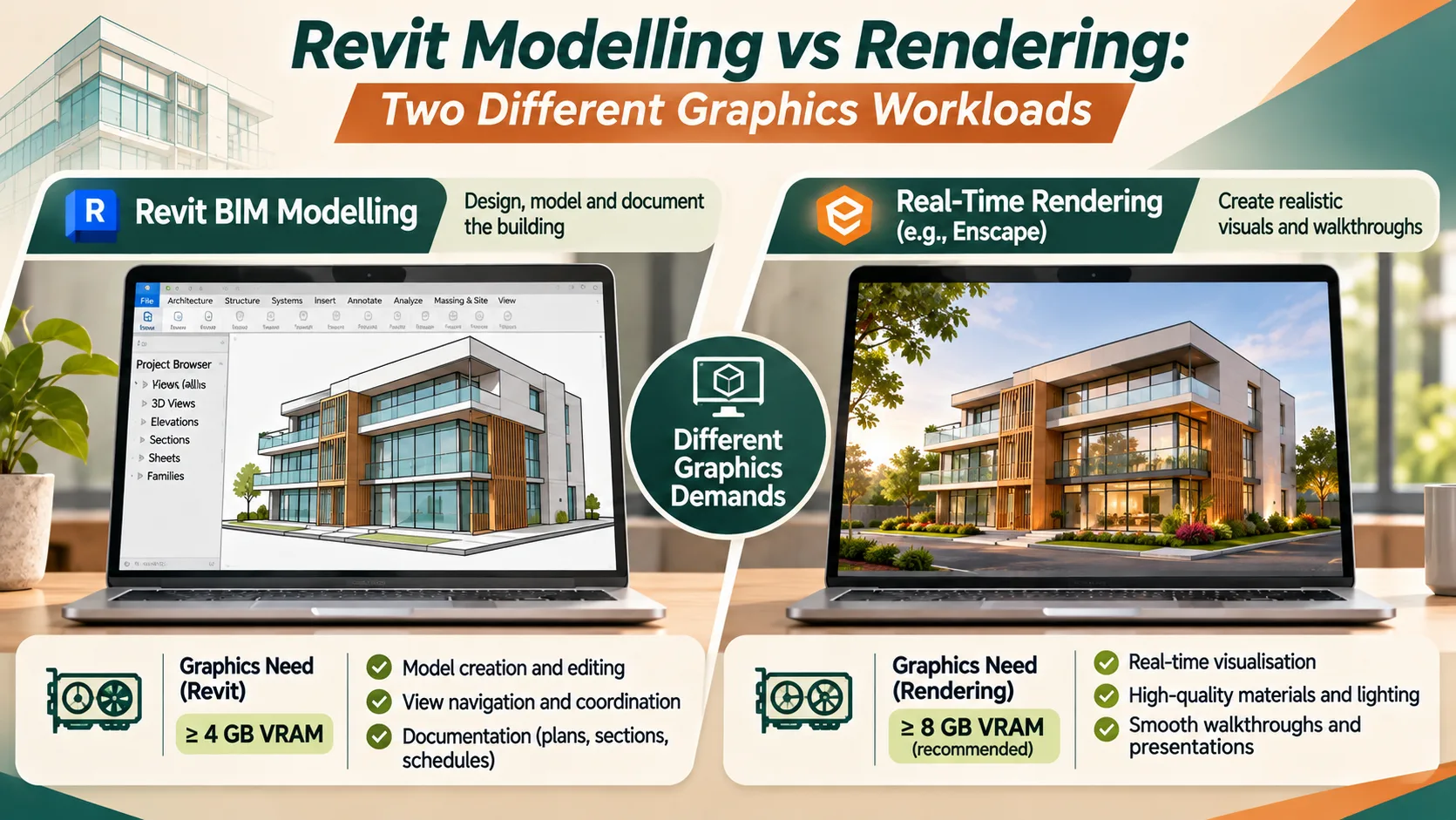
A graphics card, or GPU, helps display and navigate 3D views. Its VRAM is the memory available to the graphics processor. Graphics specifications matter more as the visual workload becomes demanding.
Integrated graphics may be adequate for some basic tasks on supported configurations, but they are not equivalent to a capable dedicated GPU when projects become more demanding. Check Autodesk's requirements for the specific Revit release rather than assuming that any laptop advertised as having “graphics” is suitable.
The difference becomes clearer with rendering. Chaos's current Enscape hardware guidance identifies 4 GB of dedicated VRAM as its supported minimum and recommends 8 GB or more for practical rendering workloads. A laptop that opens Revit successfully may still struggle to deliver responsive real-time visualisation.
For a student who will regularly use Enscape or similar GPU-heavy tools, an 8 GB VRAM dedicated graphics card is a sensible comparison point. Check the renderer's own compatibility list: the graphics card's generation, available power and cooling also affect results. More VRAM is useful, but it does not make two different GPUs equally fast.
SSD, Screen and Cooling: The Less Glamorous Specifications
Autodesk lists 30 GB of installation space for Revit 2027 and recommends 100 GB of free disk space for temporary files. Once Windows, content libraries, project backups and other software are included, storage fills more quickly than expected.
A 512 GB NVMe SSD can be workable for a student with a limited software set and disciplined file management. 1 TB is a more comfortable choice for a laptop expected to hold several AEC applications and project folders. An SSD improves loading and file access; it cannot compensate for inadequate RAM.
For the screen, aim for a clear Full HD or higher-resolution display with enough usable workspace for Revit's interface and drawing area. A 15- or 16-inch laptop can be convenient, although an external monitor is often a better productivity upgrade than paying for an exceptionally high-resolution laptop panel.
Cooling and power delivery matter as well. Thin laptops may reduce performance when hot, and some run substantially slower on battery power. For long modelling sessions, appropriate ventilation and a suitable power connection are practical considerations.
Which Laptop Specification Fits Your Work?
Instead of selecting a computer by price alone, match it to the most demanding task you expect to perform regularly.
| Student workload | Reasonable purchasing target |
|---|---|
| Revit fundamentals and smaller exercises | 16–32 GB RAM, capable current-generation CPU, fast SSD and graphics meeting the chosen Revit version's requirements |
| Revit plus regular coordination and multitasking | 32 GB RAM, strong single-core CPU, 1 TB SSD and a suitable dedicated GPU |
| Revit plus frequent real-time visualisation | 32 GB or more RAM, 1 TB SSD and a compatible dedicated GPU with 8 GB or more VRAM |
| Large linked or multidisciplinary project work | Consider 64 GB RAM, capable dedicated graphics, ample SSD space and strong sustained cooling |
These are editorial buying targets, not new Autodesk certifications. For another perspective on software demands, BIM Cafe Learning Hub's Revit 2027 features guide explains the current release's wider BIM workflow changes.
Already Have a Laptop? Check It Before Shopping
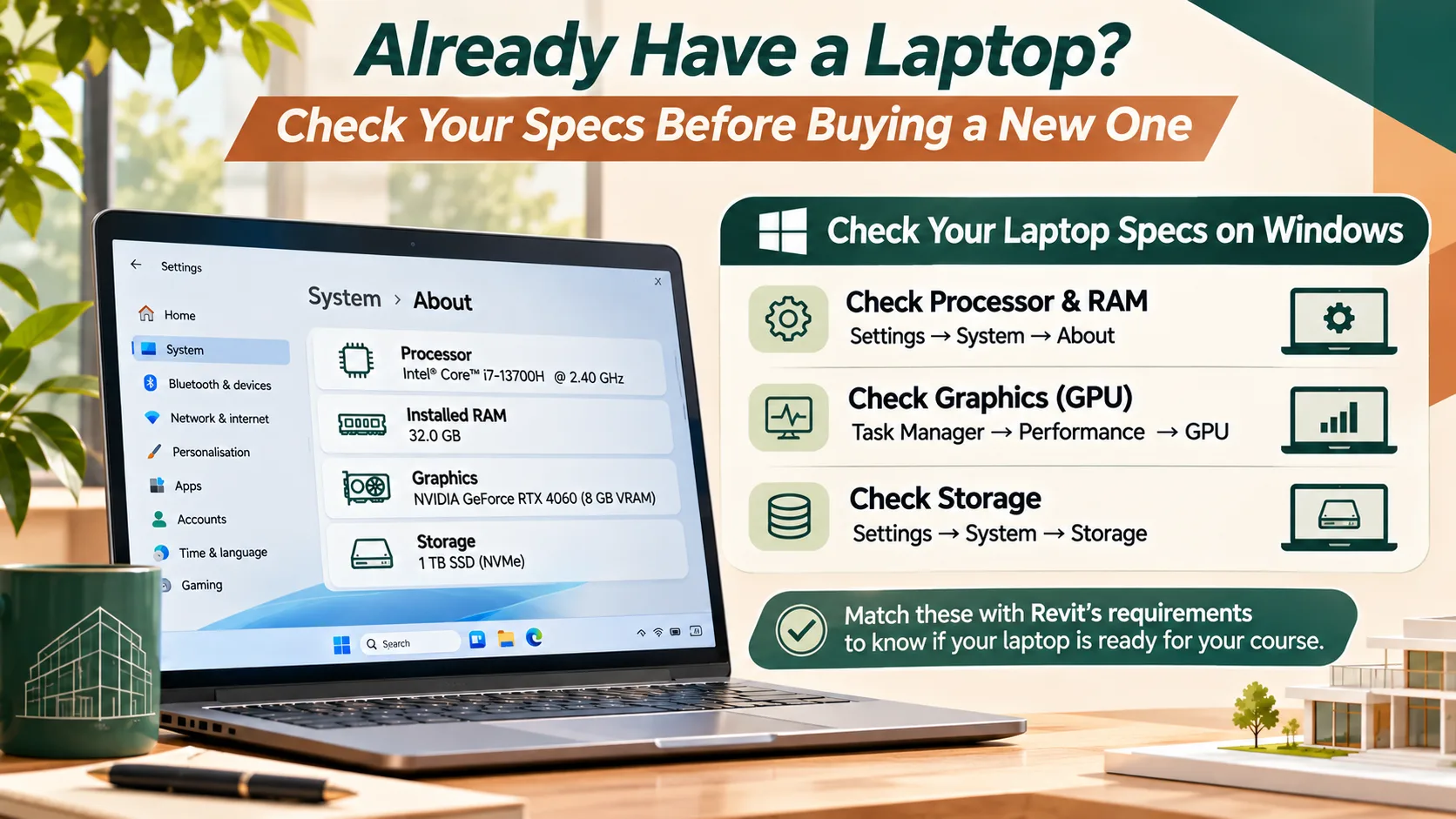
You may be closer to a usable configuration than you think. On a Windows laptop:
Open Settings → System → About to check the processor, installed RAM and Windows edition.
Open Task Manager → Performance to review memory and GPU details, including dedicated GPU memory where available.
Check Settings → System → Storage for free space, and confirm the exact GPU model against the official requirements of Revit and any rendering tool.
Run a representative training model if you have legitimate access to the software. Notice how long it takes to open views, whether navigation remains responsive and whether memory fills during common tasks. Those observations are more relevant than a seller's promise that a laptop is “perfect for architecture”.
If your computer already handles beginner exercises, consider whether extra RAM, an SSD upgrade or an external display would solve the immediate problem. The Revit mistakes students should avoid also reminds you that modelling habits and file organisation shape the experience, regardless of hardware.
What About a MacBook?
Revit is not a native macOS application. Autodesk documents a Parallels Desktop and Windows virtual-machine configuration for supported Apple computers, including Apple silicon, but it adds compatibility and resource considerations. It should not be presented as the same experience as running Revit directly on a Windows laptop.
Rendering plugins can have stricter restrictions: for example, Chaos says Enscape is not supported through Parallels or Boot Camp on a Mac. If Revit is the main purpose of the purchase, a compatible Windows laptop remains the more straightforward option. If you already own a Mac, review Autodesk's current virtual-machine instructions and the specific requirements of every plugin before committing to that workflow.
Buy for the Workflow, Not the Sticker
For most beginners purchasing a laptop in late 2026, the useful starting point is Windows 11, a capable modern processor, 32 GB of RAM, and a fast SSD. Add a suitable dedicated GPU if you expect substantial 3D work; give graphics capability more attention if real-time rendering is part of your course.
There is no single “best Revit laptop” for everyone. A student producing small architectural exercises and a coordinator managing large linked models will not have identical needs. The smarter purchase starts with the actual software, project size, and work you want the laptop to support.
Frequently Asked Questions
Is 16 GB RAM enough for Revit in 2026?
Sixteen gigabytes meets Autodesk's entry-level memory guidance for Revit 2027 and may be workable for simpler models. For a new laptop that will be used throughout BIM training, 32 GB provides more comfortable headroom for linked models and multitasking. Actual performance varies with the model and other applications.
Do I need a dedicated graphics card for Revit?
Check the requirements for your exact Revit version and workload. Some basic modelling may be possible with compatible integrated graphics, but a suitable dedicated GPU becomes more valuable for complex 3D work. For Enscape, the recommended graphics specification is much higher than for basic Revit use.
Can Revit run on a MacBook?
Revit does not run natively on macOS. Autodesk documents using Windows through Parallels Desktop on supported Macs, subject to specific configurations. Plugin compatibility and performance should be checked separately. A compatible Windows laptop is generally the simpler choice for a Revit-focused learner.